

Japanese study guide
How to Use Cotobara's Immersion Tools: Reading, Watch and the Hover Reader
A guide to Cotobara's three immersion tools, graded stories read aloud, YouTube with Japanese subtitles you can look up, and a free extension for any website, with advice on using them well.
Vocabulary study gives you the words. Immersion is where you meet them in sentences, at native speed, written the way Japanese is actually written. Cotobara has three tools for that, each suited to a different stage:
- Reading: short graded stories, narrated, with furigana and per-sentence translations.
- Watch: YouTube videos with a Japanese subtitle line in which every word can be looked up.
- Japanese Hover Reader: a free Chrome extension that does the same for any website, including Netflix.
This guide covers what each one does, how to use it, and how they fit together.
Reading: graded stories, read aloud
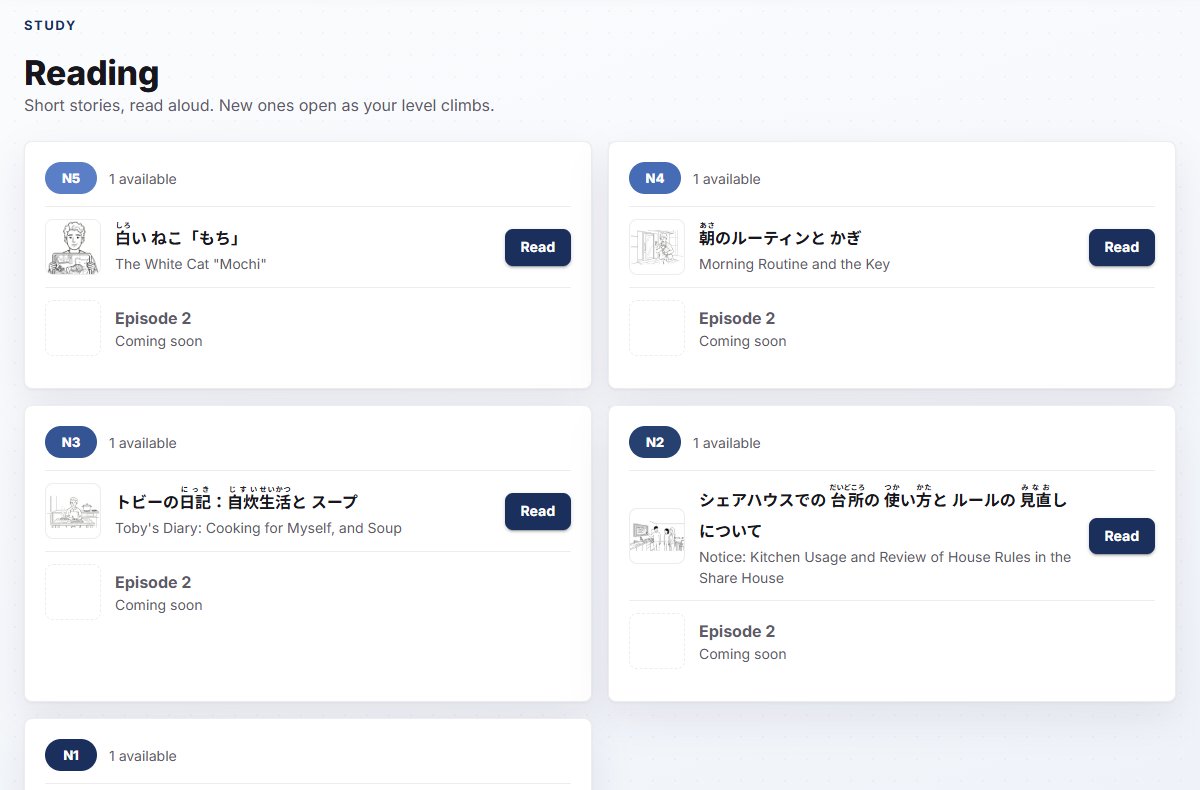
Open Reading from the Study menu. Stories are shelved by JLPT level, N5 to N1, so you can start where your vocabulary is and move up. Each one has a cover illustration, its title in Japanese with furigana, and an English title underneath.
New stories open as your Cotobara level rises, and a locked story shows the level it needs. Reading itself is free on every account.
Inside a story
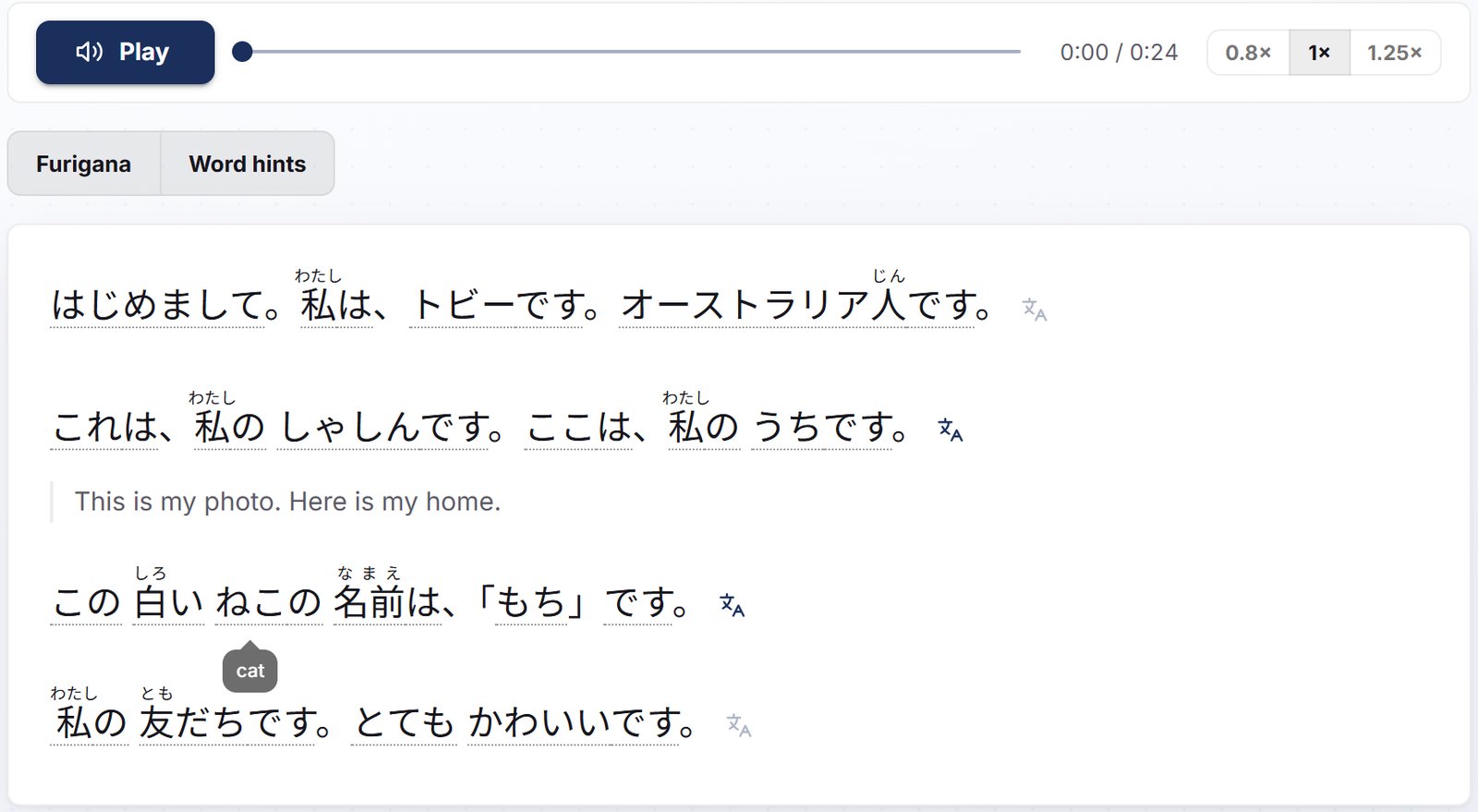
Every story is read aloud. Press Play to listen; the sentence being read is highlighted as it goes. If the pace is too fast, switch to 0.8×; once the story is familiar, try 1.25×.
Two switches above the text control how much help you get:
- Furigana shows or hides the readings over the kanji. The layout does not move when you turn it off, so you can test yourself on a sentence and turn it back on to check.
- Word hints let you hover (or tap, on a phone) any word to see its meaning.
The small translate icon at the end of each sentence opens the translation of that sentence only. The full translation is never shown all at once, so you work through the Japanese first and check one line at a time.
At the bottom, a Vocabulary table lists the words in the story with their readings and meanings. Click any row to open the word in a popup, with its pronunciation, example sentences and notes, without losing your place. When you have finished, press Mark as read at the top of the story; it shows a tick on the shelf, and its button changes to Read again.
How to use it
- Listen once without reading. See how much you catch by ear alone.
- Read with the audio. Follow the highlighted sentence, and use word hints for anything you do not know.
- Read once more on your own, with furigana off if the kanji are within reach. Open a sentence's translation only to confirm what you think it says.
- Come back a week later. A story you already understand is good listening practice, and you will notice how much faster it reads.
Watch: YouTube with subtitles you can look up
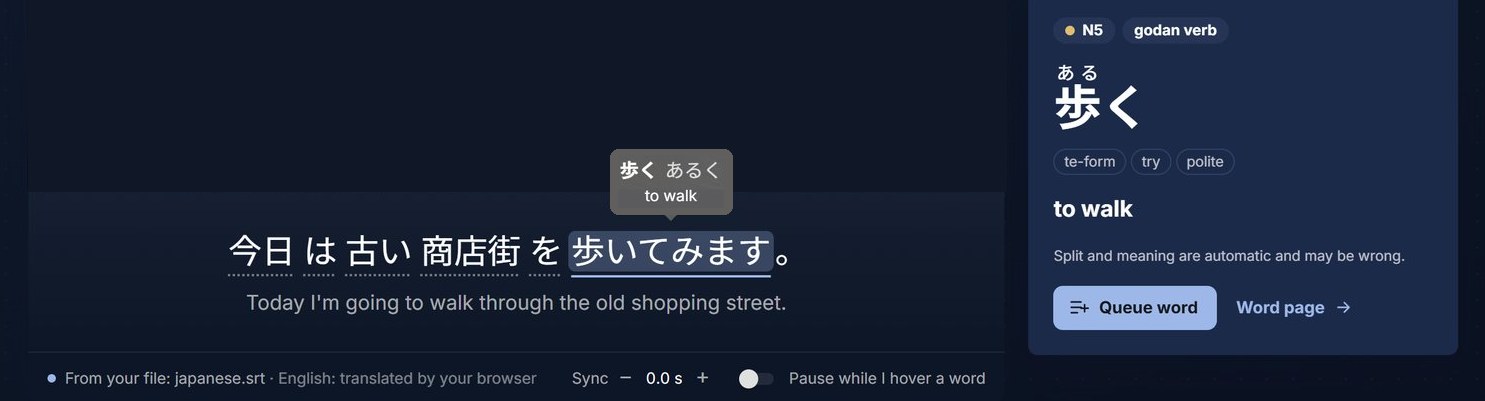
Watch plays a YouTube video, or a video file from your computer, with its Japanese subtitles underneath. Every word Cotobara recognises is underlined. Hover one to see its reading and meaning; the panel beside the video adds its JLPT level, its part of speech and, for a conjugated word, how it was formed.
The main controls:
- Pause while I hover a word stops the video while you look something up and resumes it when you move away.
- Sync shifts the subtitles by half a second if they run early or late.
- Second subtitles adds a line in your language under the Japanese: the video's own translation if it has one, otherwise one made by your browser on your device (Chrome or Edge on a computer).
- Queue word adds the word to your next lesson, so a word you met in a video becomes one you study with spaced repetition.
The player and your saved videos work on every account. The Japanese subtitle line, word lookups, second subtitles and queueing are part of Premium. For the full set-up, including the Cotobara Watch extension that loads subtitles automatically, see How to use Cotobara Watch.
The Japanese Hover Reader: any website
Reading and Watch work inside Cotobara. The Japanese Hover Reader brings the same lookups to the rest of the web: news sites, blogs, social media, web novels, YouTube and Netflix.
Install it from the Chrome Web Store; there is a link on the Watch page. It is free, needs no account, and shows no ads. Point at Japanese text and the word under your cursor shows its furigana, JLPT level and meaning, together with a translation of the whole sentence. Click the word to open its full page on Cotobara.
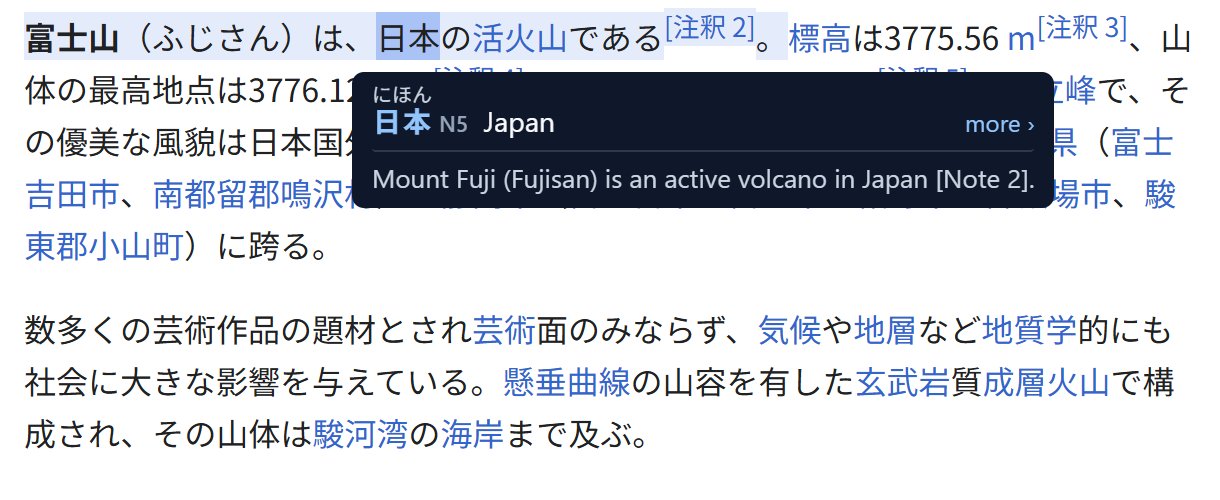
Page text: the Japanese Wikipedia article 富士山, CC BY-SA 4.0.
On video sites it can also translate subtitles into a bar under the player. For Netflix's Japanese subtitles, the bar shows the Japanese line too, so you can hover words while you watch. The bar can be blurred until you point at it, which keeps you reading the Japanese first.
A few practical notes:
- It needs Chrome 138 or later on a computer. Translations use Chrome's built-in translator, so nothing is sent to a server; the Japanese model downloads once, the first time you use it.
- Alt+Shift+R turns the reader on or off, and Alt+Shift+W does the same for subtitle translation.
- Under More options you can choose when underlines appear (only the sentence you point at, while you hold a key, or always), and whether the tooltip shows furigana.
- It cannot read text that exists only as an image, such as subtitles burned into a video.
Which tool, and when
- Early on (N5 to N4): start with Reading. The stories are written for your level, and the narration teaches you what the words sound like.
- Once a story reads comfortably: add Watch. Choose videos slightly above your level, such as vlogs, cooking videos or slice-of-life shows, and look up only the words that block your understanding.
- When you already read Japanese online: keep the Hover Reader switched on. It turns your normal browsing into reading practice without stopping you on every unknown word.
Whichever you use, be selective about what you keep. Each word you queue becomes future reviews, so the best candidates are common words you are likely to meet again, close to your JLPT level. Let rare names and one-off terms go.
Immersion and vocabulary study support each other. Study gives you enough words to follow what you read and hear, and immersion shows those words in use. If a story or video still feels like noise, spend more time on core vocabulary and come back to it in a few weeks.