

Japanese study guide
How to Use Cotobara with WaniKani (Step-by-Step Setup)
Connect WaniKani to Cotobara in a minute: what gets imported, the four overlap filters, and how to stop reviewing words you have already burned.
If you already use WaniKani for kanji, connecting it to Cotobara lets the two work as one system: WaniKani keeps carrying your kanji readings, and Cotobara covers the broader JLPT and everyday vocabulary, without ever making you re-study a word you've already mastered. (For the why behind the pairing, see Why WaniKani + Cotobara is the best combo.)
This guide walks through the whole setup. It takes about two minutes.
Before you start
- A Cotobara account. The WaniKani integration is free on every plan, including the free tier. (See pricing.)
- A WaniKani API token. A free, read-only personal access token is all Cotobara needs. Here's how to get one.
Step 1: Get your WaniKani API token
- Log in to WaniKani and go to Settings → API Tokens
(
wanikani.com/settings/personal_access_tokens). - Click Generate a new token. You can leave every permission unchecked; Cotobara only reads your progress, it never writes to your WaniKani account.
- Give it a name like "Cotobara" and generate it, then copy the token string.
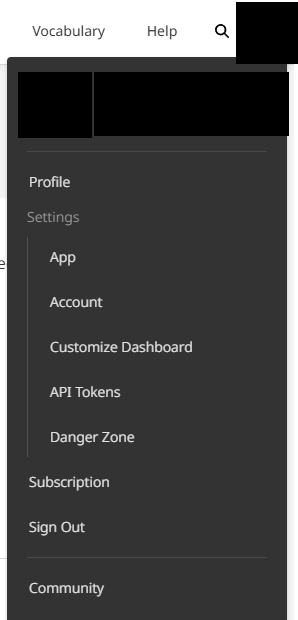 On WaniKani, open your profile menu (top-right avatar) and choose API Tokens.
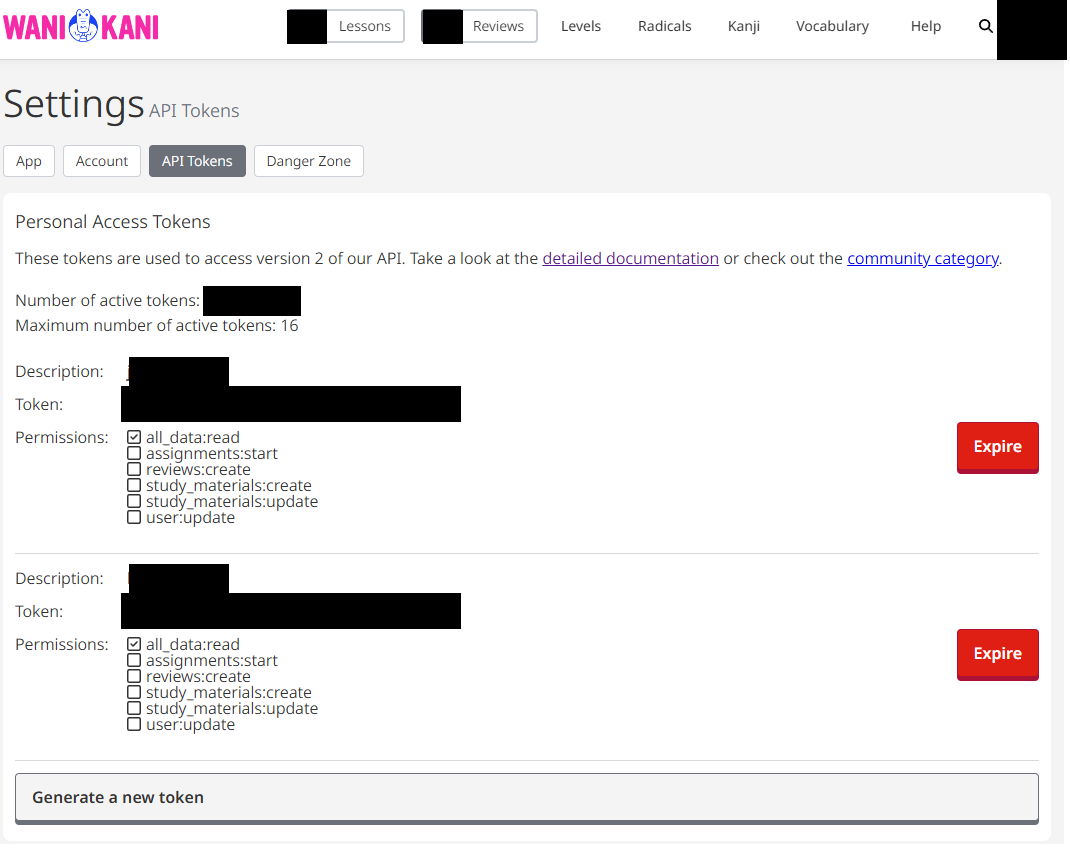 On the API Tokens page, click Generate a new token. No permission boxes need to be checked.
Step 2: Connect it in Cotobara
In Cotobara, open Settings and scroll to the WaniKani integration card. Paste your token into the WaniKani API token field and click Connect.
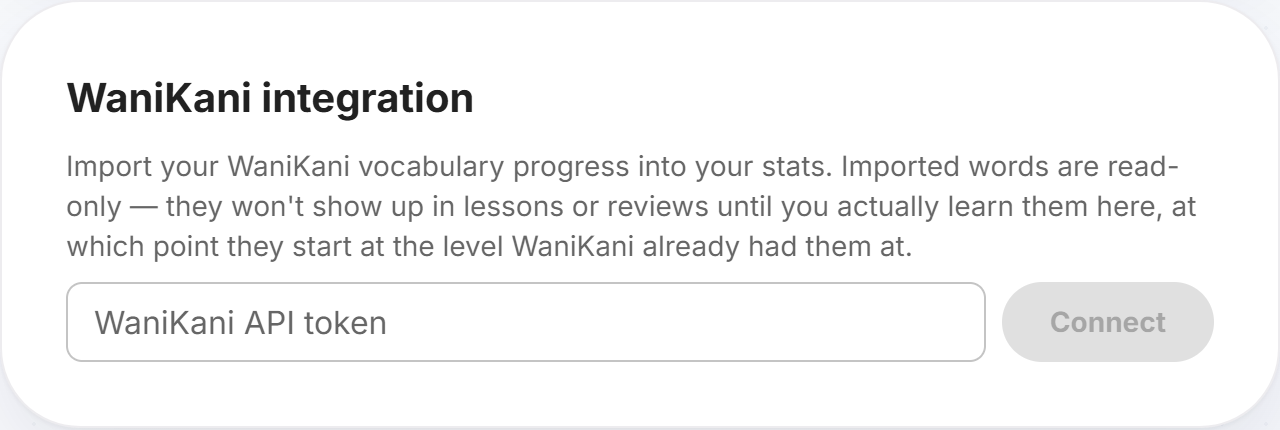 Settings → WaniKani integration. Paste the token and click Connect.
Cotobara imports your WaniKani vocabulary progress into your stats. Imported words are read-only: they won't show up in your lessons or reviews until you actually learn them in Cotobara, at which point they start at the SRS level WaniKani already had them at. So connecting never floods you with a giant pile of new reviews.
Step 3: Sync
Once connected, the card shows the account you're linked as and when it last synced. Cotobara refreshes your progress automatically about once a week (it piggybacks on you visiting Settings, so there's no background job to wait on), but you can force an update any time with Sync now. There's a short cooldown between manual syncs.
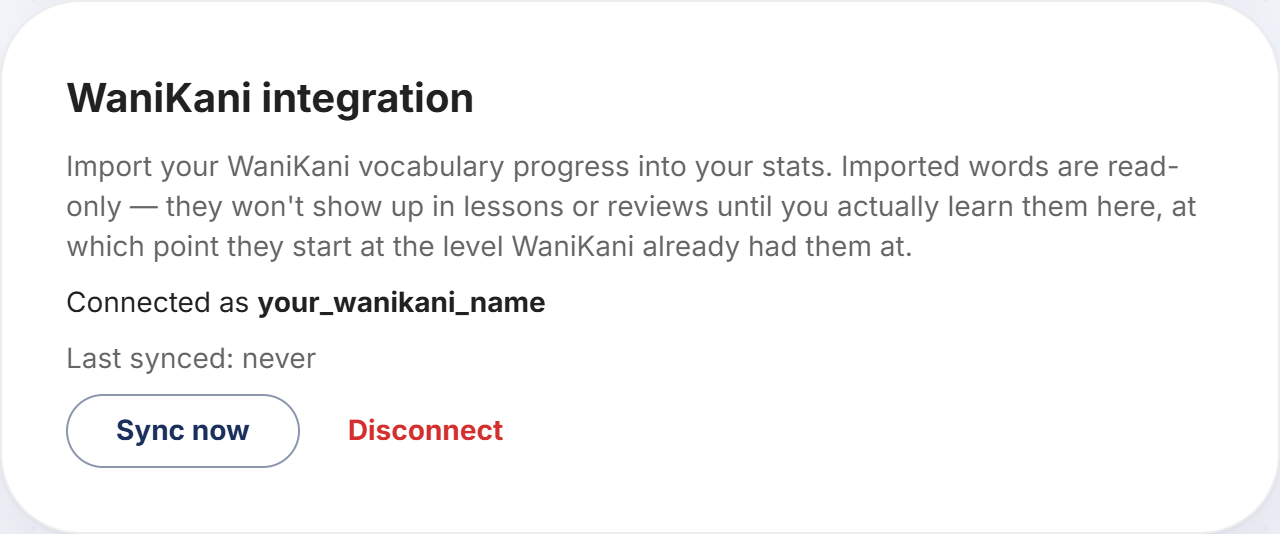 Once connected: your linked account, last sync time, and a Sync now button.
Step 4: Set the exclusion filters (the important part)
This is what makes the two apps stop overlapping. Below the connection, you'll find four toggles that control which WaniKani words Cotobara keeps out of your queue:
- Remove burned items from lessons: words you've already burned on WaniKani are never offered as new lessons.
- Remove burned items from reviews: burned words are hidden from your review queue, even if you'd been reviewing them here.
- Remove all WaniKani items from lessons: any word you've started on WaniKani (burned or not) is never offered as a new lesson.
- Remove all WaniKani items from reviews: any word you've started on WaniKani is hidden from your review queue.
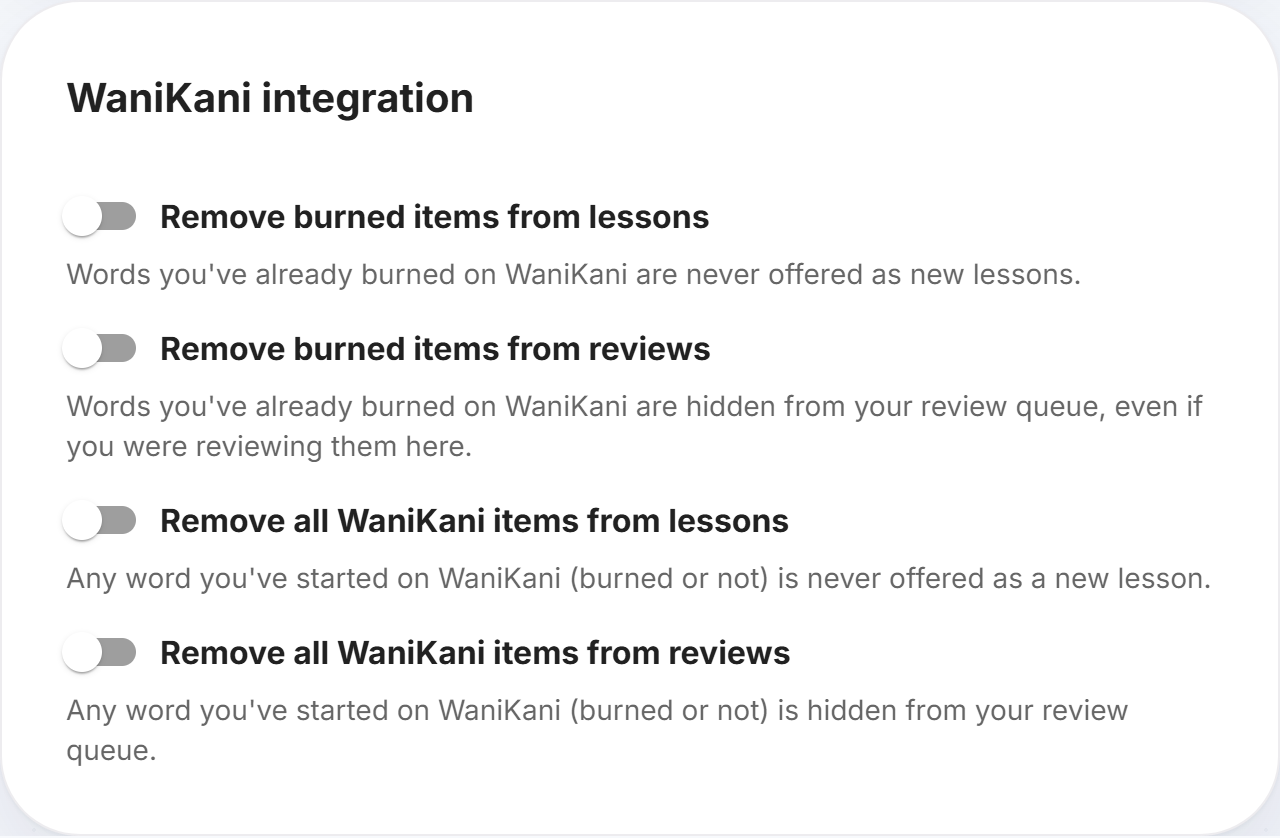 The four exclusion filters. Each one saves the moment you flip it.
Which should you turn on?
- Recommended for most people: turn on the two burned filters. You skip re-studying what you've already mastered on WaniKani, but Cotobara can still reinforce WaniKani words you haven't burned yet, useful extra exposure in fresh example sentences.
- For zero overlap: turn on the two all WaniKani items filters instead. Cotobara then covers only the vocabulary WaniKani doesn't touch at all, and the two apps divide the work completely.
Each toggle saves itself immediately; there's no separate save button for these.
Step 5 (optional): skip JLPT levels you've already passed
In the same Settings page, the Lessons card has a Starting level dropdown. If you're past beginner, set it to the JLPT level you're working on and Cotobara stops offering easier words as new lessons. Half-levels (like N3.5) skip the most common half of the next level down. Words you've already learned keep their review schedule either way.
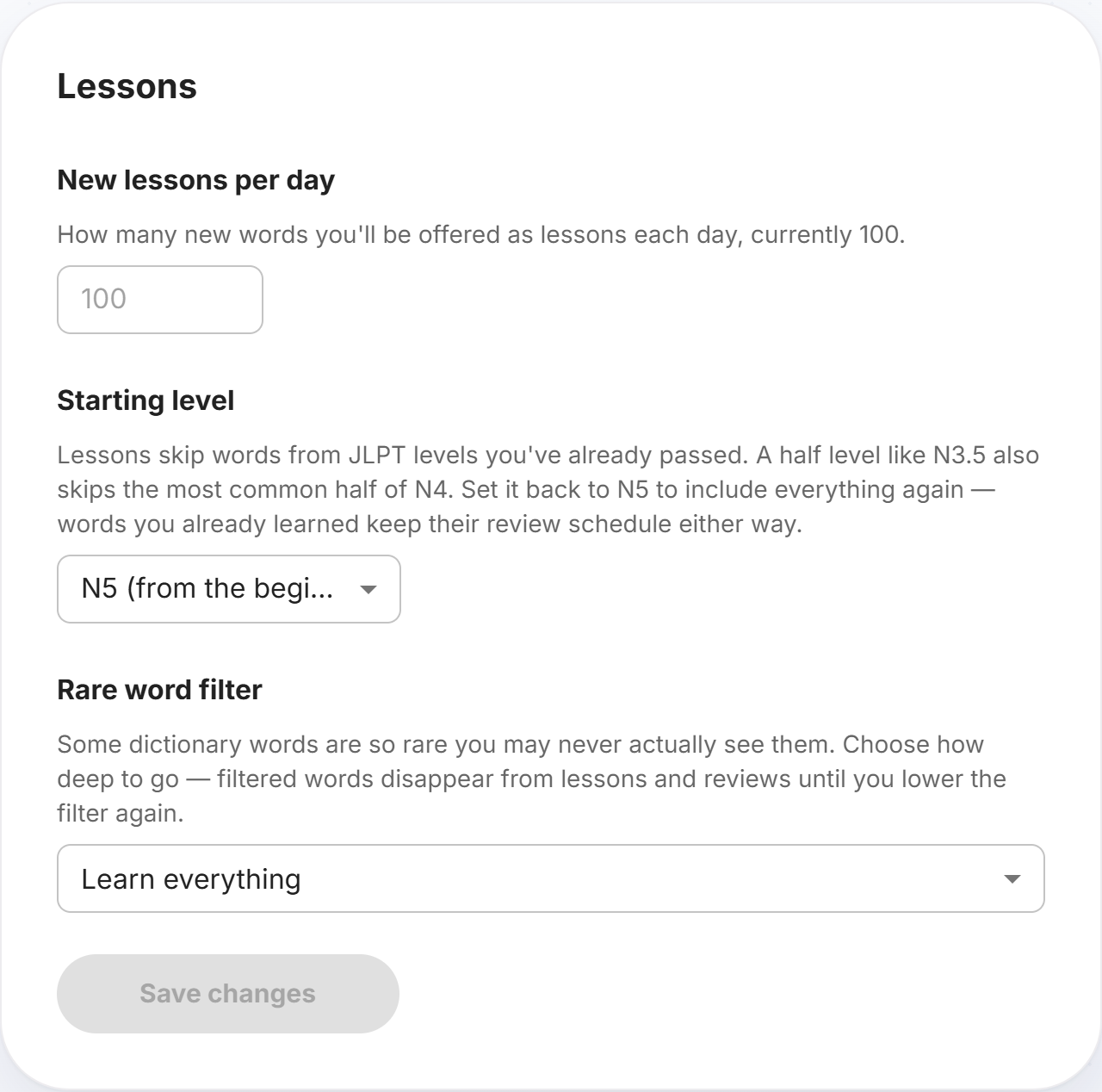 Settings → Lessons → Starting level. Skip levels you've already cleared.
That's it
With WaniKani connected and the burned filters on, your daily routine becomes: do your WaniKani reviews for kanji, then do Cotobara for everything else, with no wasted reps on words you've already locked in on either side.
New here? Start Cotobara for free, then connect WaniKani from Settings, no paid plan needed. Curious how Cotobara compares to other tools? Read Cotobara vs Anki, or see everything Cotobara does.